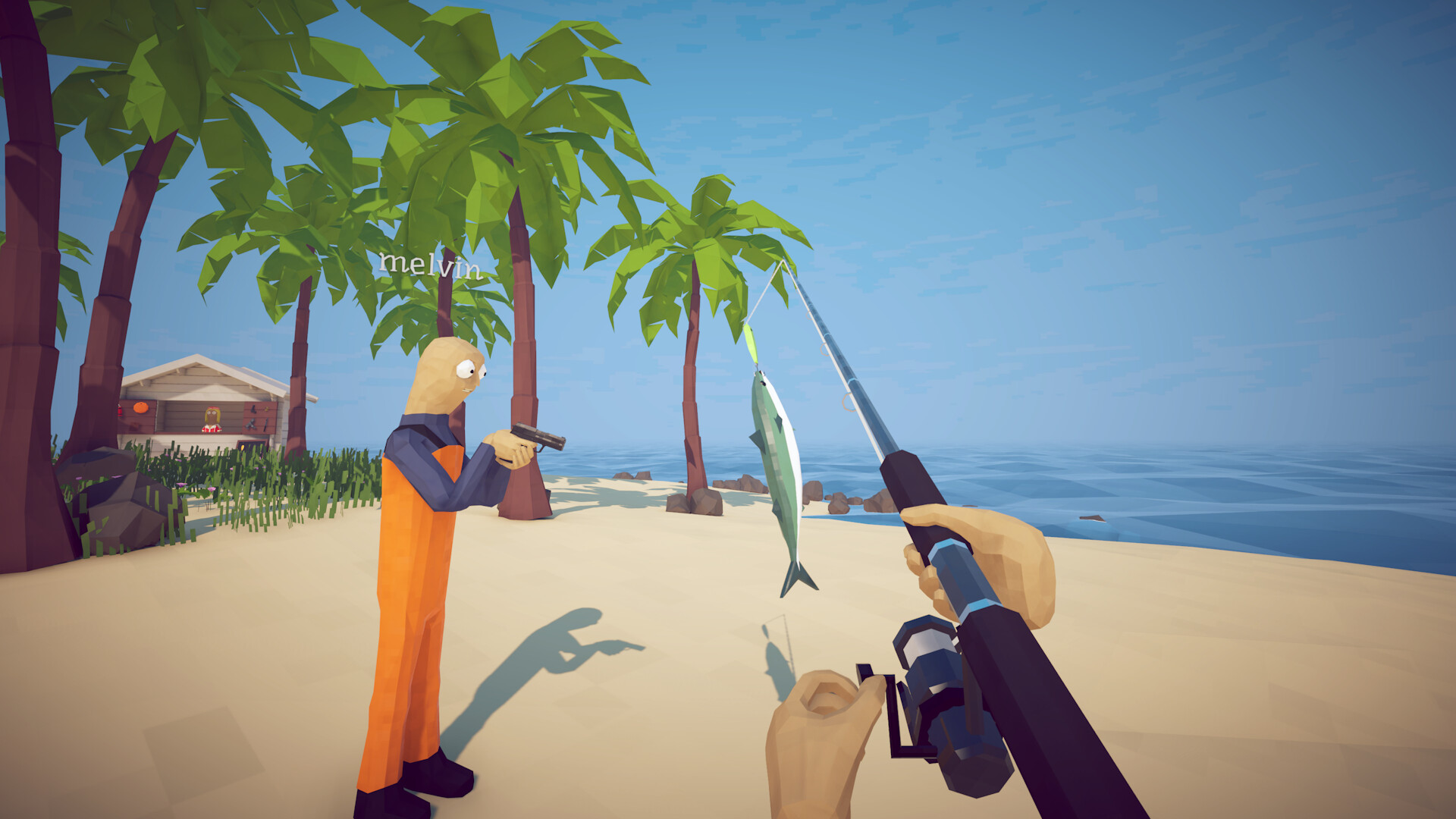
How many people can play How to Fish?
Official Patch 1.0.4 added support for up to eight players in a lobby. The older Steam description still uses one-to-four-player wording. Solo remains an option; use the patch note when planning a larger party. Read the eight-player announcement.
For a continuing campaign, choose the host and intended save first. Confirm everyone's game is updated, then create the session and send fresh invitations. Keep the next quest objective and shared spending plan clear before leaving the island.
Host a session and invite your friends
- Finish updates on every PC. Exit the game while Steam updates it; restart Steam if a pending patch is not offered.
- Choose the campaign. The agreed host opens the intended save or starts the new campaign the crew has chosen.
- Set the session visibility. Private lobbies are invitation-only. The 1.0.5 notes also allow changing session type in server settings, with a restart required after the change.
- Invite through Steam. With the host's session open, use the Steam friends or overlay invitation flow. Guests accept the current invitation; confirm the host is still in the same session if it fails.
- Check in before a boss. Confirm each player can move, equip an item and see the intended island and encounter.
The Steam invitation flow is also described in the community co-op guide. If you changed the overlay shortcut, use your own Steam binding instead of assuming a keyboard combination.
Keep the campaign and the Cloud copy straight
Before leaving, agree who will host the next session and which campaign to reopen. Do not assume a guest's separate world will merge with this one. Check the intended world, inventory and quest state when resuming.
Patch 1.0.6 documents saves through the Save, Main Menu and Quit buttons, plus autosaves each minute. A crash is not a deliberate final save. Finish important hand-ins, use the normal save/menu flow, and allow the session to close normally.
Moving an existing campaign to another device? Patch 1.0.12 added Steam Cloud and instructs players to launch and exit once on the PC holding the existing save to upload it. Wait for Steam's sync to finish before opening the game on the second device.
If two devices contain different progress, preserve both local copies before choosing what to keep. Cloud support does not establish a method for merging campaigns or transferring a host world between different Steam accounts. Use the save troubleshooting guide for a missing or damaged save.
When the lobby works but voice does not
Patch 1.0.12 updated MetaVoice to 4.3 with the aim of improving voice bugs. The developer describes this as an attempted improvement, not a guarantee that every headset issue is fixed.
Use a short comparison before the next encounter:
- Confirm whether you cannot hear others, cannot transmit, or hear duplicated sound. These are different symptoms.
- Check your operating system's selected microphone and playback device, then test the microphone outside the game.
- Review in-game voice settings and the assigned transmit control if one is configured. Rejoin after changing devices.
- If you are also in an external voice call, mute one route briefly to check whether both are playing the same speaker.
These are general audio checks, not a game-specific guaranteed repair. Record the working device, host or guest role, and whether only one player is affected if you need to report the issue.
Separate an invitation problem from a failed connection
| What you see | Next check |
|---|---|
| Invitation no longer opens the intended game | Confirm the host is still running that session and request a fresh invitation after it opens. |
| Version Mismatch | Exit on every device, complete Steam updates, then recreate the lobby. |
| Red Steam relay text in the main menu | The official 1.0.9 note directs players to the developer Discord's common-bugs guidance for initialization failures. |
| Black screen or disconnect during joining | Compare one guest at a time after a fresh host session. Note whether the same guest can join a different session before changing several variables. |
| Host and guest see different encounter states | Compare the same location and objective before spending another boss trigger. Record screenshots from each side for a bug report. |
A failed invitation alone is not evidence that your campaign is damaged. If loading the save itself fails in solo play, follow the save and launch checks separately.
Make a small plan before the group spends bait
Assign the immediate jobs: one player handles the quest item, another checks the route, and everyone knows which encounter is next. During trick-shot practice, agree who gets the final hit. Before shopping, name the shared purchase and reserve in the crew budget.
For new teammates, start with the game's Steam discussions or the community Discord linked by the developer. State campaign stage, language, time zone, session time, open seats and voice preference. An old recruitment post is not a live lobby listing.
Use the campaign route for the next hand-in, and the fishing controls guide if a new player's rod behaves differently from the rest of the crew.
Sources & further reading
- Dazed Games: eight-player lobbies in Patch 1.0.4
- Dazed Games: private sessions in Patch 1.0.5
- Dazed Games: save triggers and autosaves in Patch 1.0.6
- Dazed Games: Steam relay diagnostic in Patch 1.0.9
- Dazed Games: Steam Cloud and voice changes in Patch 1.0.12
- Community co-op guide: hosting and Steam invitations